
How to save a Google Doc as a PDF
Saving a Google Doc as a PDF is one of the easiest ways to share your work in a clean and professional format. A PDF keeps your layout intact, prevents unwanted edits, and works on any device.

In this guide, you will learn the fastest ways to convert your Google Docs to PDF, plus a simple trick for handling multiple files at once using fullyfreetools
There are a few common reasons people convert Google Docs to PDF
- You want your document to look the same on every device
- You need a print ready version
- You are sending a final version that should not be edited
Quick method to convert Google Docs to PDF
Here is the fastest way to do it
- Open your Google Doc
- Click File
- Click Download
- Select PDF Document
Your file will download instantly as a PDF
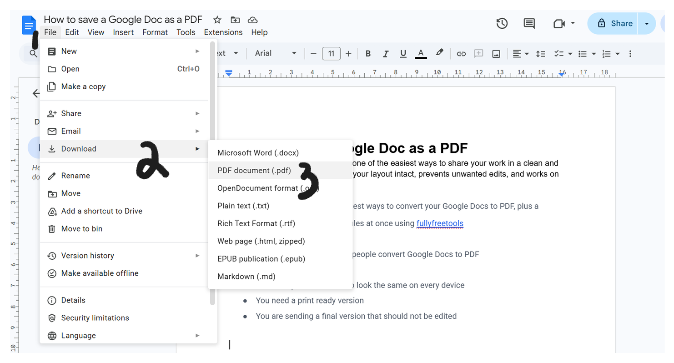
This method works best when you just need a quick and clean export.
Method 1: Download as PDF
This is the simplest approach and works directly inside Google Docs
- Open your document
- Click File
- Click Download
- Choose PDF Document
Open the downloaded file to confirm everything looks correct
Use this when you do not need to adjust layout settings like margins or orientation.
Method 2: Use print and save as PDF
This method gives you more control over how your final document looks
Open your Google Doc
Click File and then Print
In the print window, choose Save as PDF
Adjust layout, margins, or pages if needed
Click Save
This is useful if your formatting looks off after downloading.
How to save a Google Doc as a PDF on mobile
If you are using a phone, follow these steps
Open the Google Docs app
Open your document
Tap the menu icon
Tap Share and export
Tap Send a copy
Choose PDF
Your file will be ready to save or share instantly
How to convert multiple Google Docs to PDF
Google Docs does not support bulk PDF export directly, but there is a simple workaround
First, download your files as Word documents from Google Drive
Then go to this tool:
PDF to word converter tool
If needed, you can first convert formats or organize your files, then use a PDF converter tool to process them.
For combining multiple PDFs into one file after conversion, you can also use a merge tool to keep everything in a single document.
Always open your PDF after converting to make sure spacing, images, and formatting are correct. Small adjustments in Google Docs before exporting can make a big difference in the final result.
That is all. You now know how to quickly turn any Google Doc into a professional PDF file.
Related Articles
How to merge PDF files online free
In this short guide we are gonna learn how to merge multiple pdf files into one online completely for free and no need to sign up or login anywhere.
About the Author

Phyllis Mireles
Senior content writer @mergefiles.online